

MEGA Object storage
Dropshare 6.10 and newer
Preparation
Access Keys
Go to your MEGA Dashboard and select Manage keys under Access keys and create a new access key pair for Dropshare. Copy the access key and secret key for the next step.
Bucket
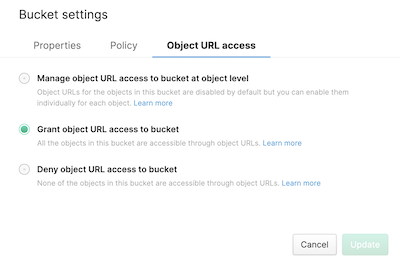
Go to your MEGA Dashboard, select Object Storage, and click Create bucket. Enter a bucket name and copy it for the next step. Then, select the bucket and click Settings, Object URL access, and select Grant object URL access to bucket.
Account ID
To access files uploaded to MEGA Object Storage via URL, you need to know your Account ID. Follow the instructions under How to find the account ID in the MEGA user guide.
Set up connection
To create a MEGA Object Storage connection in Dropshare for Mac, first enter the preferences. Switch to the Connection tab. Select MEGA Object Storage for your connection, and enter all required information:
| Preference | Description |
|---|---|
| Bucket Name | Enter the name of the bucket. You can optionally also enter a subfolder in that given bucket, e.g. bucketname/foldername. |
| Access Key ID | Enter the Access Key ID |
| Secret Key | Enter the Secret Key |
| Endpoint | Select an Endpoint of your liking. |
| Account ID | Enter the Account ID identified in the previous step |
Press Test Connection to make sure Dropshare is able to successfully upload files.