

Dragging files onto the menu bar icon opens Mission Control on macOS 27 Golden Gate
On macOS 27 Golden Gate, dragging a file onto the menu bar opens Mission Control instead of dropping the file. This is a change in macOS and affects every app with a menu bar icon, not just Dropshare. Since the menu bar is now fully handled by macOS, apps cannot prevent this from happening.
As a result, dragging a file onto the Dropshare menu bar icon to upload it no longer works reliably on macOS 27.
Solution: Show Zone below menu bar icon
Dropshare can show a small drop zone right below its menu bar icon whenever you start dragging a file. Drop the file onto that zone instead of the menu bar icon to upload it, without ever touching the menu bar.
To enable it:
- Open the Dropshare settings and select Uploads.
- In the Zone section, enable Show Zone below menu bar icon.
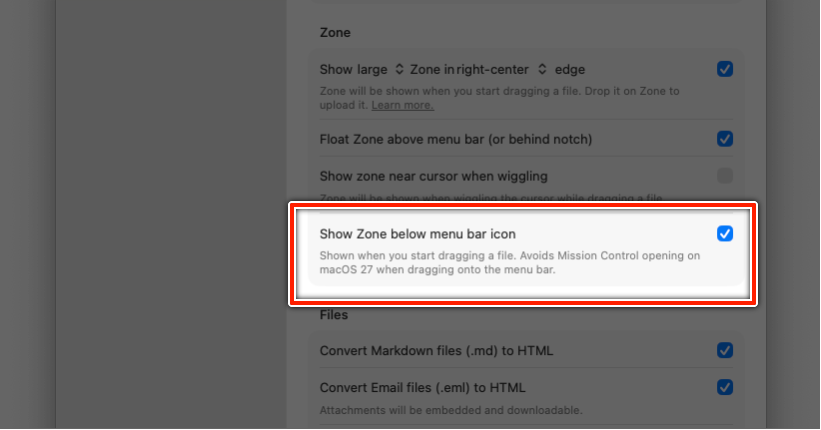
From now on, when you start dragging a file, a "Drop to upload" zone appears below the Dropshare menu bar icon. It hides again as soon as you drop the file or cancel the drag.
TIP
This setting works independently of the regular Dropshare Zone at the edge of your screen. You can use either one, or both at the same time.