

Fastmail Files
Dropshare 6.2 or newer
To set up a connection to Fastmail Files, you need to create a Fastmail Files Connection in the Connections preferences after you've set up a folder for Dropshare and a website to serve your Files in the Fastmail dashboard.
Create Folder and Website
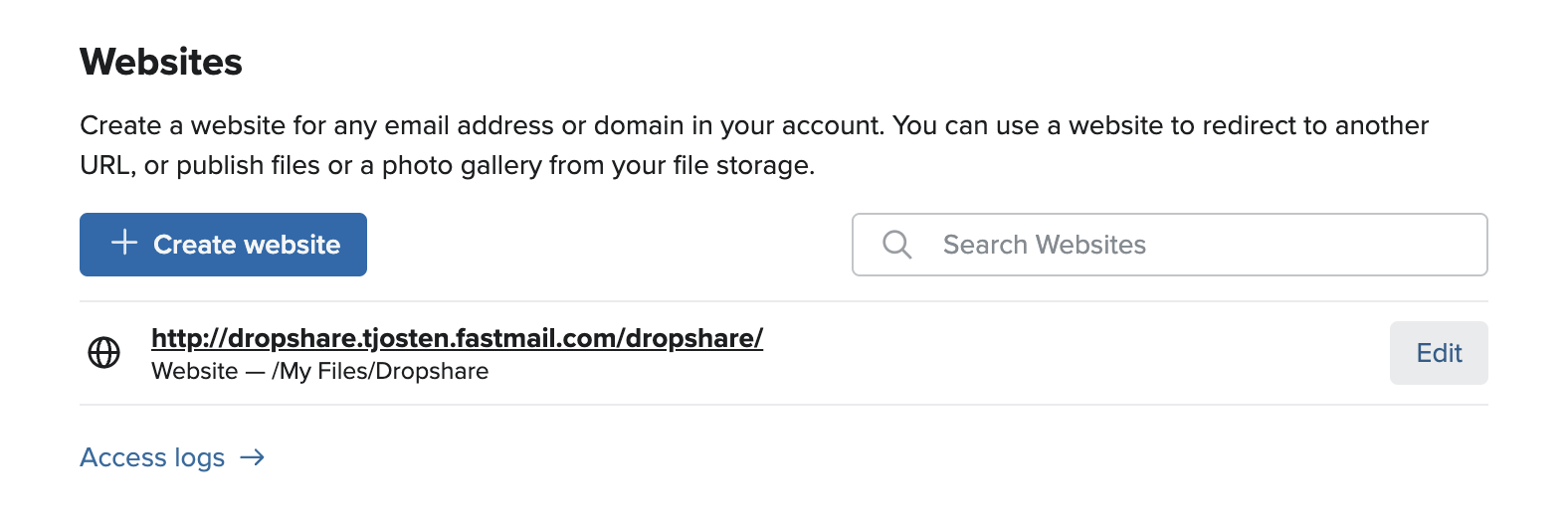
Open your Fastmail Files dashboard, and create a folder to store your Dropshare uploads in. Then, create a website to serve this folder.
In this example, we created a folder named "Dropshare" in our root level directory (see "Publish Folder"). Make sure to disable "List folder contents of no index.html" for security reasons.
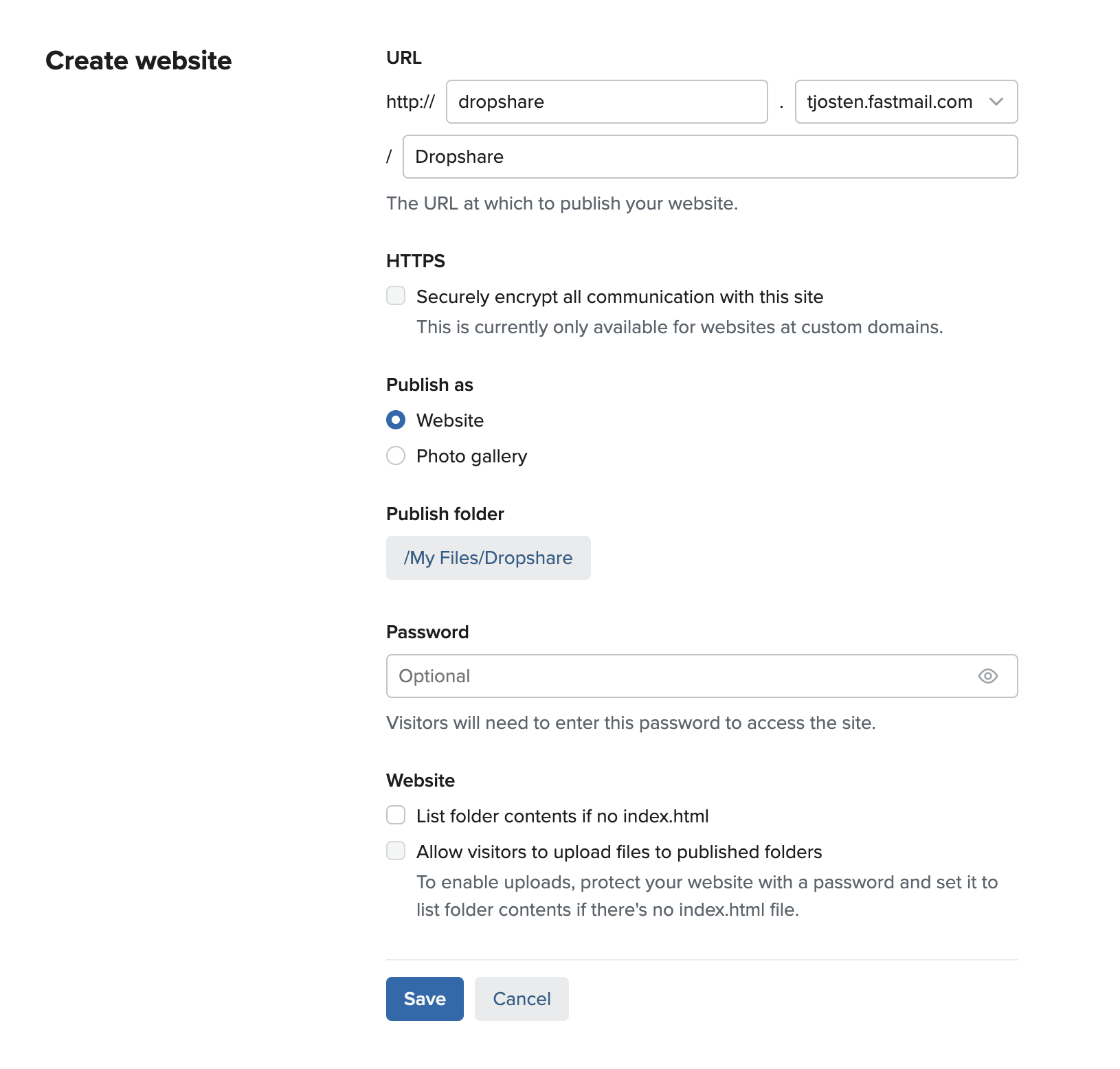
Click save to create the website:
Create App Password
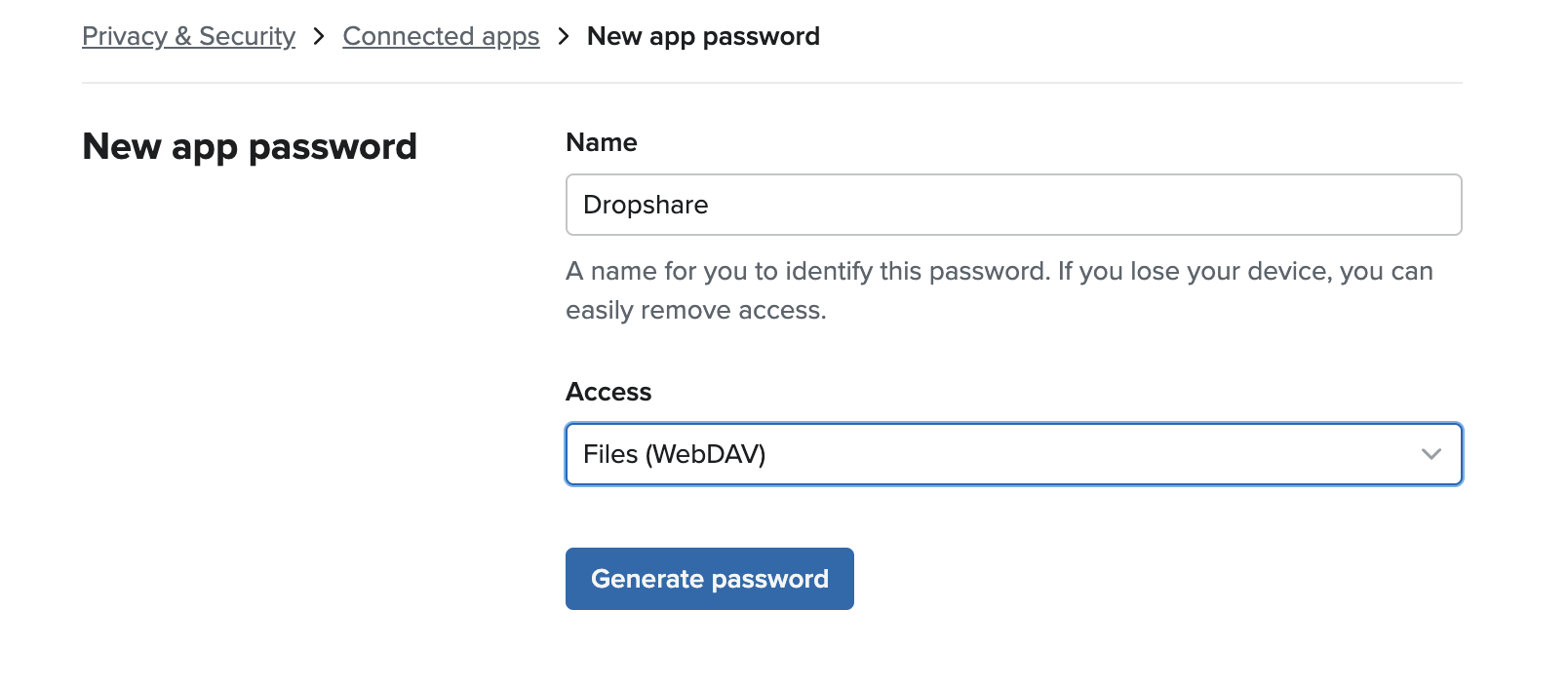
To allow Dropshare to upload files to your Fastmail Files storage, create an app password for Dropshare. Make sure to select "Files (WebDAV)" for access.
Set Up Connection
Go to the Dropshare preferences, open the Connections tab, and choose to create a new Fastmail Files.
| Preference | Description |
|---|---|
| Folder | Path to folder created before, e.g. Dropshare |
| Username | Your Fastmail username (without @fastmail.com) |
| App Password | The app password created before |
| Website URL | The URL to the website created before (including http://) |
Click Test Connection to make sure everything has been set up correctly, and you're done!