Log Files
The log files contain helpful information for the customer support in case of an issue with the app. They do not contain confidential information such as passwords or passphrases.
macOS
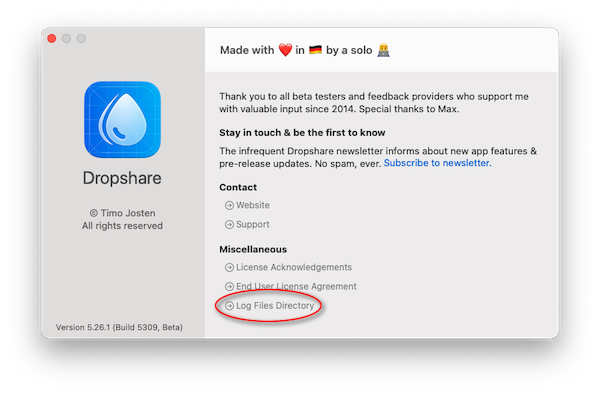
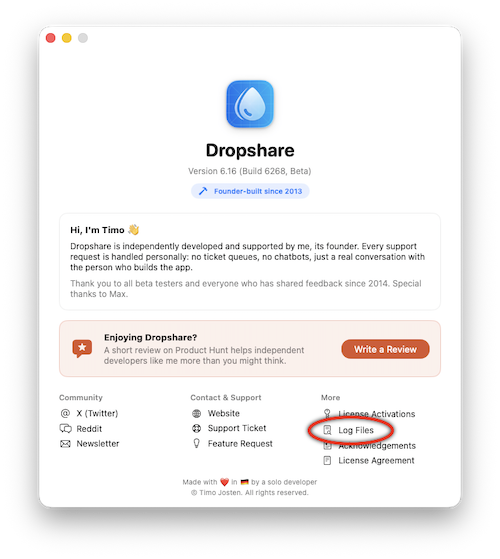
To get the log files of Dropshare for macOS, navigate to the About window (Dropshare icon in menu bar, menu button on the right, About) and click the Log Files Directory button on the bottom of the window.
INFO
You can also use this link to open the log files directory while the app is running.
iOS
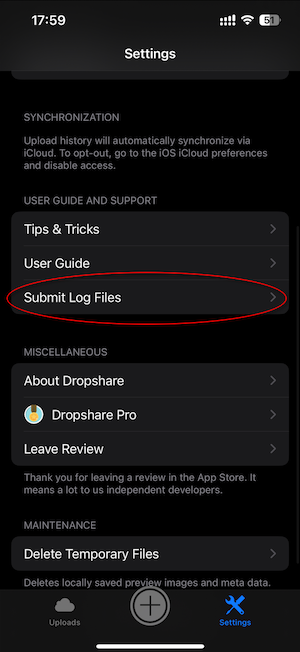
To get the log files of Dropshare for iOS, navigate to the Settings screen and tap Submit Log Files in the menu.
This will open a new email addressed to Dropshare support with the log files attached.