

Landing Page
Dropshare optionally creates an HTML landing page for each of your uploads. You can select from a number of built-in designs, or create your own design.
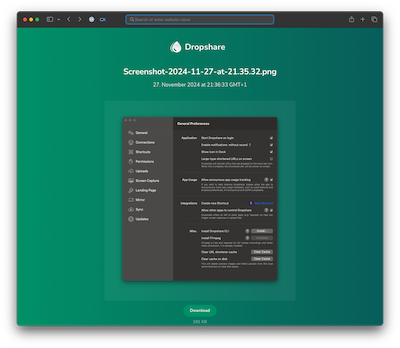
Enable landing pages
If you want to enable this feature, open the Preferences and select the Landing page tab.
Select Create landing pages for uploaded files if you want Dropshare to create a landing page for your uploads.
INFO
In case you want to disable the landing page for a single upload, press and hold the option key (⌥) while dragging a file to Dropshare.
Supported storage providers
- Alibaba Object Storage
- Amazon S3 / Custom S3-compatible
- Backblaze B2
- Contabo Object Storage
- DigitalOcean Spaces
- Filebase
- FTP
- IDrive e2
- Linode Object Storage
- MEGA Object Storage
- Microsoft Azure Blob Storage
- MinIO
- Rackspace Cloud Files
- Scaleway Object Storage
- SCP
- SFTP
- WebDav
Unsupported storage providers
Landing pages are not supported by some storage providers, since they do either not support serving HTML files or only allow image uploads:
- Box
- Dropbox
- Flickr
- Google Drive
- Horizon
- iCloud Drive
- ImgBB
- Imgur
- kDrive
- Koofr
- Lensdump
- Nextcloud
- OneDrive
- pCloud
- vgy.me
- Zoho WorkDrive
Select landing page design
You can either use any of the built-in designs, or create your very own design with HTML, CSS and JavaScript. Select the Custom design to enable your own landing page design, and edit the code for your design.
The following variables are available for your custom landing page, and will be automatically replaced with the appropriate data when uploading a file:
| Variable name | Replacement |
|---|---|
__FILENAME__ | Name of the uploaded file (e.g. for headline) |
__PATH__ | Path to the uploaded file (e.g. for download link) |
__PREVIEW__ | Preview image, video, text or code (if available, including required HTML tags) |
__FILESIZE__ | Formatted filesize (e.g. 128 KB) |
__FILETYPE__ | Apple Uniform Type Identifier (Read more) |
__SHAREDATE__ | ISO formatted date of sharing |
__PREVIEWURL__ | Absolute URL to preview file, required e.g. for Twitter cards or Slack previews (or custom preview implementations) |
__LANDINGPAGEURL__ | Absolute URL to the landing page |
__UNIXSHAREDATE__ | Unix Timestamp date of sharing |
Community landing page designs
A number of free landing page designs has been submitted by the Dropshare community. Check them out here.