Upload selected Finder files with a keyboard shortcut
You can upload the file or files currently selected in Finder using a keyboard shortcut in several ways:
Dropshare 6.11 or newer: Built-in shortcut
From Dropshare 6.11 onwards, you can use the Upload selected files from Finder keyboard shortcut. Select one or more files in Finder, then press the shortcut (configured in Preferences → Shortcuts). No copy step or Shortcuts app required.
Option 1: Upload from clipboard
- In Finder, select the file(s) you want to upload.
- Press ⌘+C to copy the selection to the clipboard.
- Press your configured Upload from Clipboard shortcut (set in Preferences → Shortcuts).
Dropshare will upload the copied file(s) and place the shareable link(s) on your clipboard.
Option 2: Apple Shortcuts with a custom keyboard shortcut
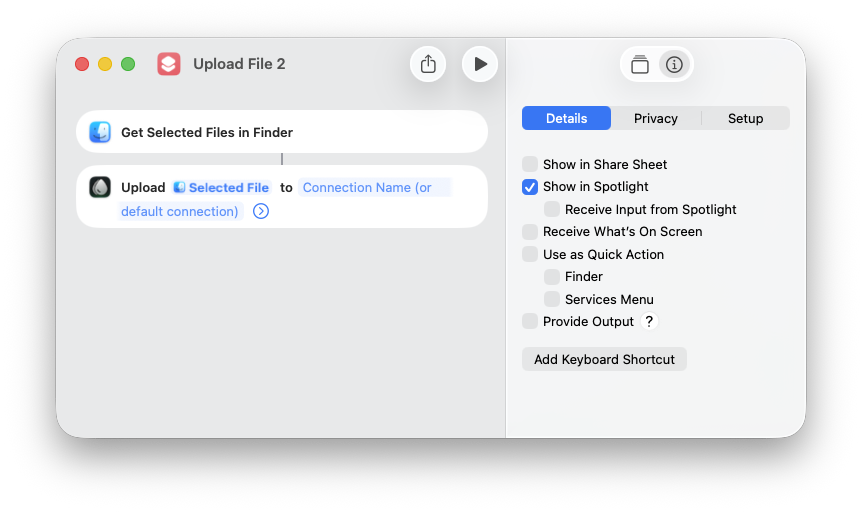
For a single shortcut that both gets the selection and uploads it (without copying first), use the Shortcuts app:
- Open the Shortcuts (by Apple) app on your Mac.
- Create a new shortcut.
- Add the Get Selected Files in Finder action.
- Add Dropshare's Upload File action. Pass the files from the previous step as input.
- Add a Keyboard Shortcut.
- Save the shortcut.
When you have one or more files selected in Finder, your shortcut will get those files and upload them with Dropshare in one step.